
Your P&L is not real until commissions are factored in. Between per-share fees, options contracts and futures round-turns, those costs add up.
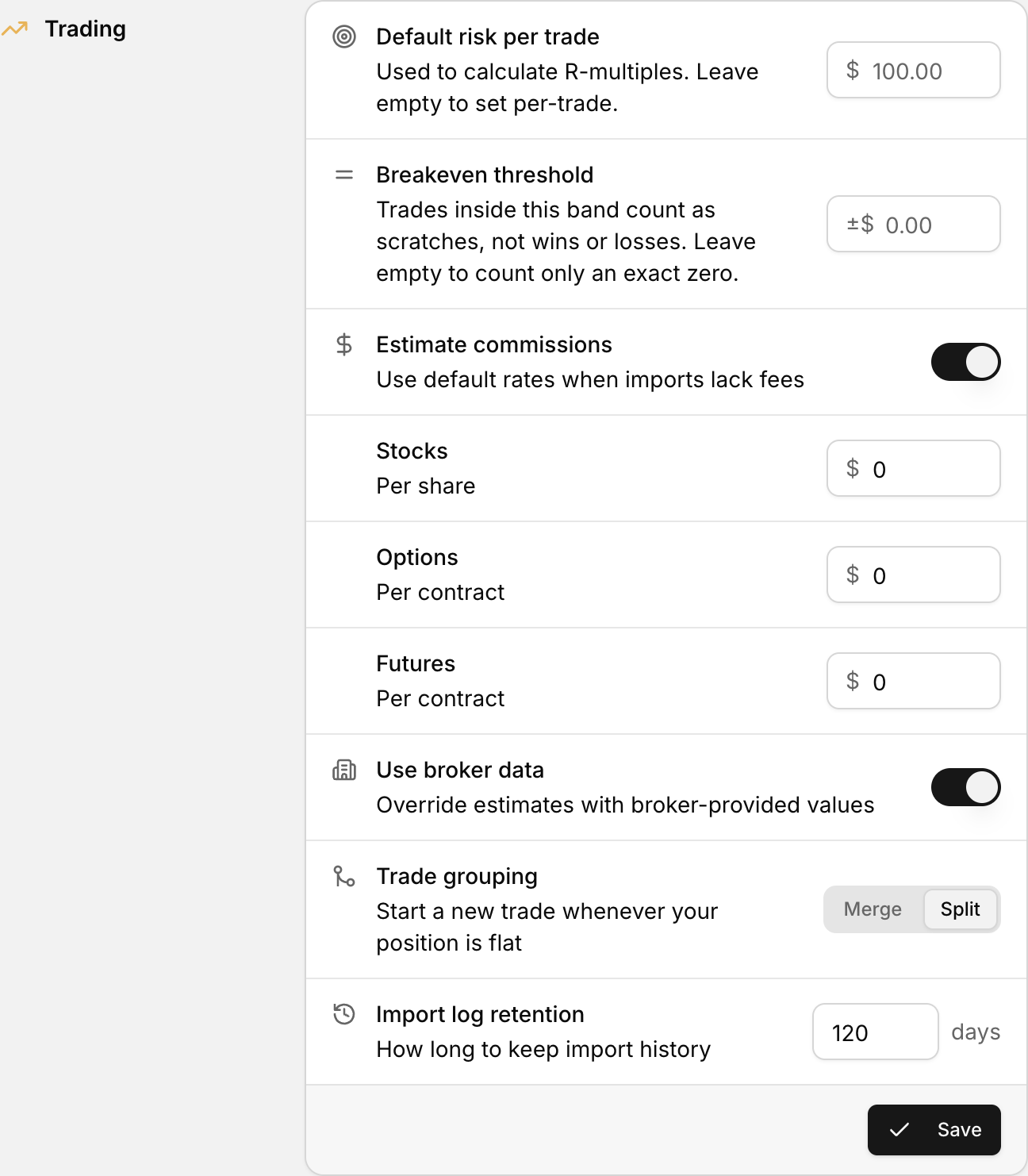 Estimate commissions, the Stocks, Options and Futures rates, and Use broker data in the Trading section of Settings.
Where to find it
Settings > Trading
What you can set up
| Setting | What it does | | --- | --- | | Estimate commissions | Applies your default rates when your import file does not include commission data | | Use broker data | Lets broker-reported commissions override your defaults when available | | Stocks | Your default commission rate per share traded | | Options | Your default commission rate per options contract | | Futures | Your default commission rate per futures contract |
The Stocks, Options and Futures rates only appear while Estimate commissions is on.
How to set it up
- Go to Settings.
- Scroll to the Trading section.
- Toggle on Estimate commissions if your broker data does not always include fee info.
- Enter your default rates for Stocks, Options and Futures.
- Toggle on Use broker data if you want your broker's actual values to take priority.
- Click Save at the bottom of the Trading section.
When should you use default rates?
- Your CSV uploads do not include commission data. Default rates fill the gap so your net P&L is not inflated.
- You trade across multiple accounts or brokers. A flat rate gives you an apples-to-apples comparison.
- You want a worst-case baseline. Some traders set slightly higher defaults to keep themselves honest.
After you save
After your next sync or CSV upload, spot-check a few trades. Do the commission values look right? Does your net P&L match what you would expect after fees?
If your broker data already includes commissions and you have defaults turned on, compare both before deciding which source to trust.