
Rize Trade groups option fills by underlying at import, so several contracts can sit under one trade. Open any trade to see each fill in the Executions table.
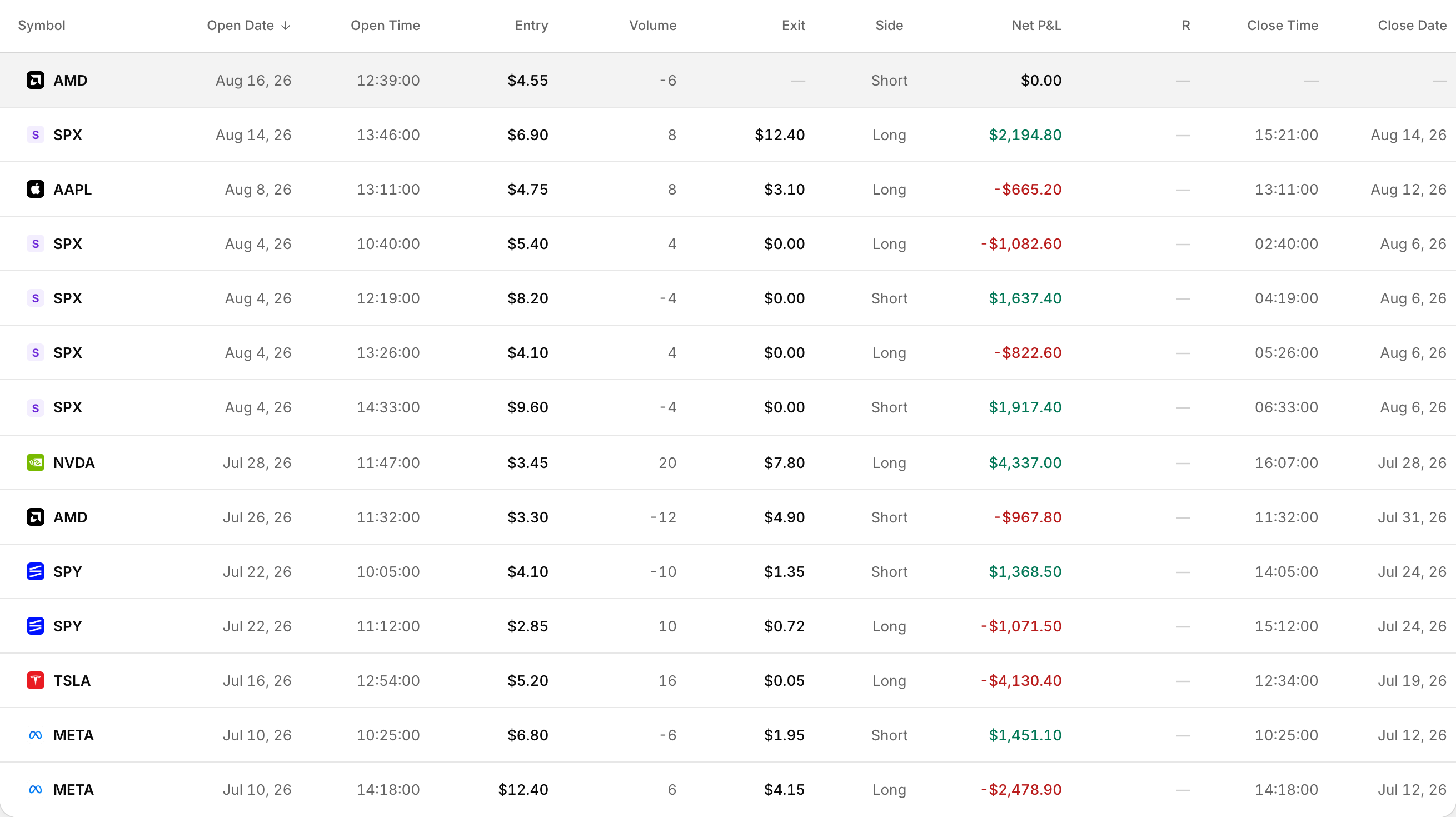 Legs listed separately, each with its own entry, exit and P&L.
There is no ungroup button on trades already in your account, and no chart toggle to view by contract instead of underlying.
How option grouping works
On import, Rize Trade groups multi-leg and related option activity by the underlying symbol.
Your Trade grouping choice in the Trading section of Settings controls how aggressively those executions become one trade or several:
- Split, the default: starts a new trade whenever your position is flat.
- Merge: merges same-day executions into as few trades as possible.
See each option fill on a trade
Every trade detail page lists each fill separately in the Executions table, even when the list shows one grouped trade.
Each row shows date, time, side, quantity, price, commission and total value. Option trades can also show the full contract label next to the symbol.
Get more separate trades on import
- Click your profile icon, then open Settings.
- Scroll to the Trading section.
- Find Trade grouping.
- Select Split.
- Click Save.
This applies to future imports only. See How to split trades into separate trades.
Regroup trades you already imported
- Save the Trade grouping choice you want.
- Delete the trades imported with the wrong grouping.
- Import those trades again.
Filter option trades in the list
- Asset Type > Options
- Symbol > Search symbols...
- Status > Open or Closed
Charts always use the underlying
Option trade charts plot the underlying stock symbol. There is no toggle to switch between contract and underlying.