
Wrong entry and exit dates almost always come from a timezone mismatch or the wrong date format when you upload a CSV.
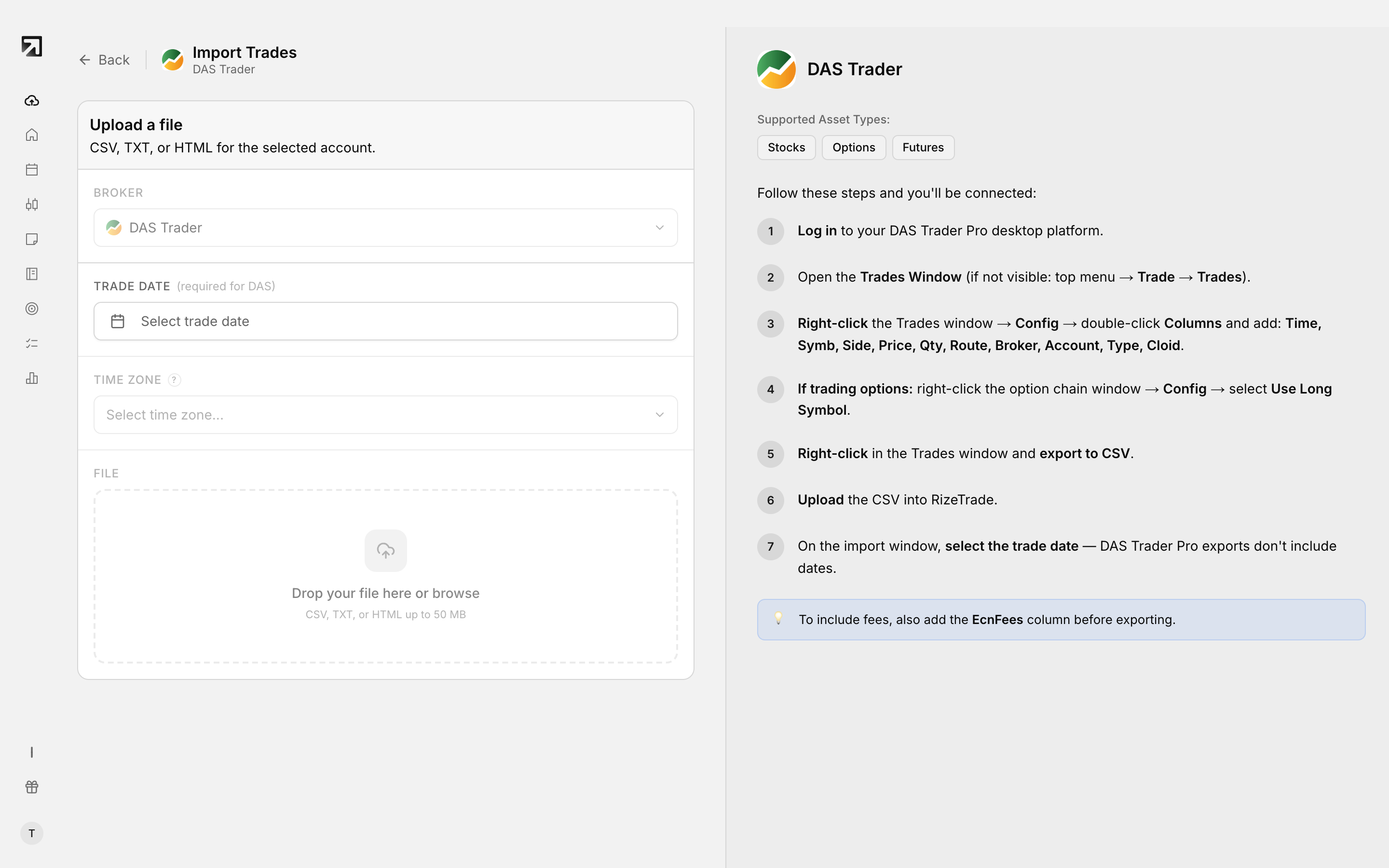 Set the date format to match your file before uploading.
What this looks like
- Entry or exit times sit on the wrong day or hour
- Markers on the trade chart land on the wrong candles
- Every trade lands on the same date
Why the dates are wrong
Rize Trade stores trade times in UTC. On CSV upload, bare timestamps are read in the Time zone you pick, then converted. If that zone does not match the file, every time shifts.
A bad date format can also misread the day, month or year.
Timezone mismatch on CSV upload
Choose the timezone that matches the timestamps in your file. If your file is in Eastern Time, pick a US/Eastern option.
Tradovate: exports use your local timezone by default.
Wrong date format for your broker
A Date Format control appears for Interactive Brokers (default yyyyMMdd), NinjaTrader, Sterling Trader Pro and Warrior Sim.
Capital.com, Colmex Pro, TEFS Evolution, Quantower and TradingView also rely on the date pattern matching.
All trades under the same date
When the timezone or date format is wrong, timestamps can collapse onto one day.
How to fix it
- Open your CSV and note the timestamp timezone and the date pattern.
- Delete the trades from the bad import.
- Start the import again, set Time zone to match the file, and set Date Format when it appears.
- Upload and check a few trades against your broker statement.
Broker sync handles timezone for you, with no manual pick on each sync.