
If your broker is not in the Rize Trade list, format your export as a Custom CSV and upload it on the import flow.
 Custom CSV is at the end of the broker list.
When to use Custom CSV
Use Custom CSV when your platform is not listed, or when you already have a simple trade export you can reshape into the columns below.
If you would rather we build a native broker option, choose Other / Not found in the broker picker.
Required columns
Your CSV must include a header row and these five columns. Header names are matched flexibly, so qty works for Quantity.
| Column | What to put |
| --- | --- |
| Date/Time | When the fill happened |
| Symbol | Ticker or instrument, for example MES |
| Side | BUY, SELL, B, S or SS |
| Quantity | Share, contract or size amount |
| Price | Fill price |
Optional columns
You can also include a commission or fee column. Rize Trade maps headers such as commission, fee, comm or cost.
Date formats and sides
Use one of these date formats:
MM/dd/yyyyyyyy-MM-dddd/MM/yyyy
You can include a time with the date, for example 2026-03-10 13:30:34. For Side, use BUY, SELL, B, S or SS.
Sample row: 2026-03-10 13:30:34, MES, BUY, 1, 6847.50
File size limit
Each upload can be up to 50 MB.
How to import with Custom CSV
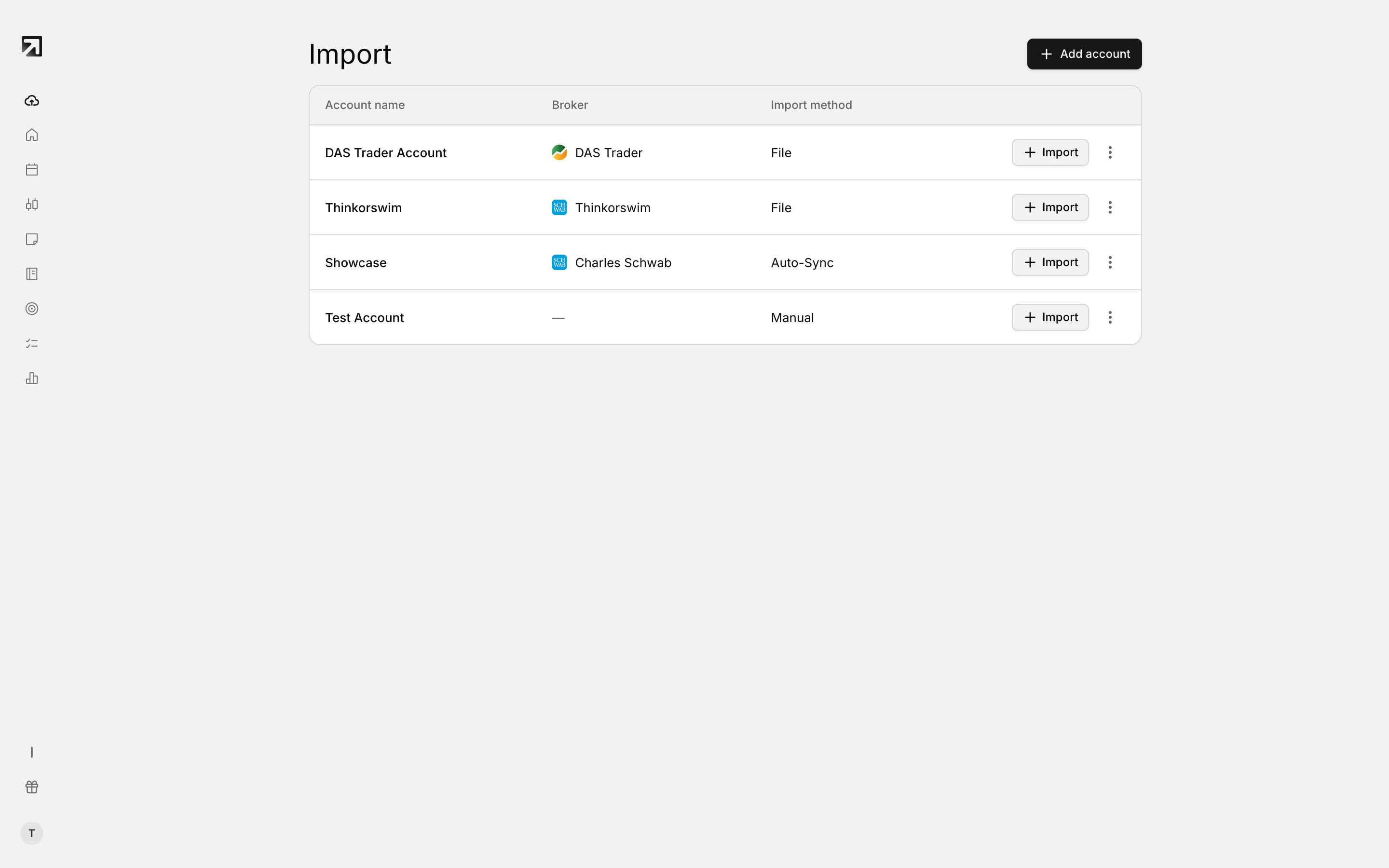
- Open import and start adding or selecting a trading account.
- Search for your broker. When nothing matches, choose Use Custom CSV.
- Enter the account name and choose the timezone.
- Upload your CSV file.
- Check status, trade count and duplicates in Import History.
If a column is missing or the file will not parse
Common failures:
- An empty file, or a header with no data rows
- Missing required columns
- No valid trades after parsing, such as bad dates, blank sides or zero quantity