
When Rize Trade cannot read the dates in your import file, open the CSV, match the real date pattern, set Date Format and Time zone on upload, then re-import.
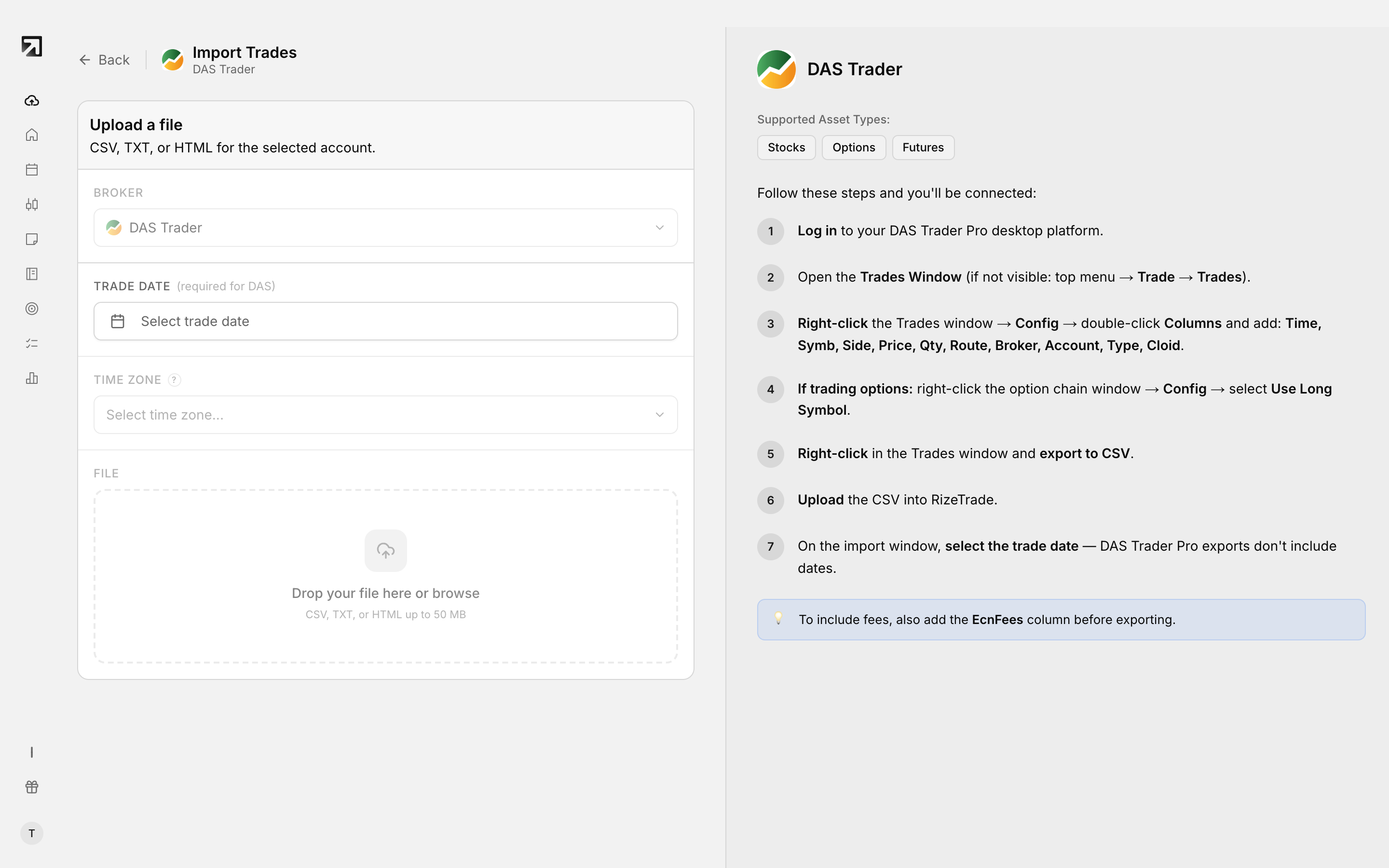 The upload step, where the date format and timezone are set before importing.
What you might see
- Incorrect Date Format — a date value has an invalid month for the format you selected.
- Invalid Date or Time — dates or times Rize Trade could not understand.
- Wrong Date Format — the import could not parse dates with the current selection.
- Date Format Problem — use MM/DD/YYYY or YYYY-MM-DD consistently.
If the import already succeeded but times look shifted, that is a different path.
Date Format defaults by broker
A Date Format control is available for Sterling Trader Pro, Warrior Sim, Interactive Brokers, NinjaTrader, Capital.com, Colmex Pro, TEFS Evolution, Quantower and TradingView.
Defaults when you do not change the control:
- Interactive Brokers —
yyyyMMdd - NinjaTrader and TradingView —
MM/DD/YYYY - Capital.com —
YYYY-MM-DD - Colmex Pro, TEFS Evolution and Quantower —
DD/MM/YYYY - All other brokers —
MM/DD/YY
For Custom CSV, use MM/dd/yyyy, yyyy-MM-dd or dd/MM/yyyy.
How to fix it
- Open your CSV and look at several date values. Note whether the first number is the month or the day, how many digits the year uses, and whether separators are slashes, dashes or none.
- Open Add Trades, choose your broker, and pick File upload.
- Set Time zone to the timezone of the timestamps in the file. This is required.
- When Date Format appears, choose the pattern that matches what you saw in the file, not the pattern you assume your region uses.
- If trades already landed with bad dates, delete those trades first.
- Upload again and check that the calendar day and time match your broker.
If day and month could both be valid, for example 03/04/2026, compare against a known trade day in your broker statement.