
Bring trades into Rize Trade with Auto-sync, File upload or Add manually. All three methods are available on Essential and Pro.
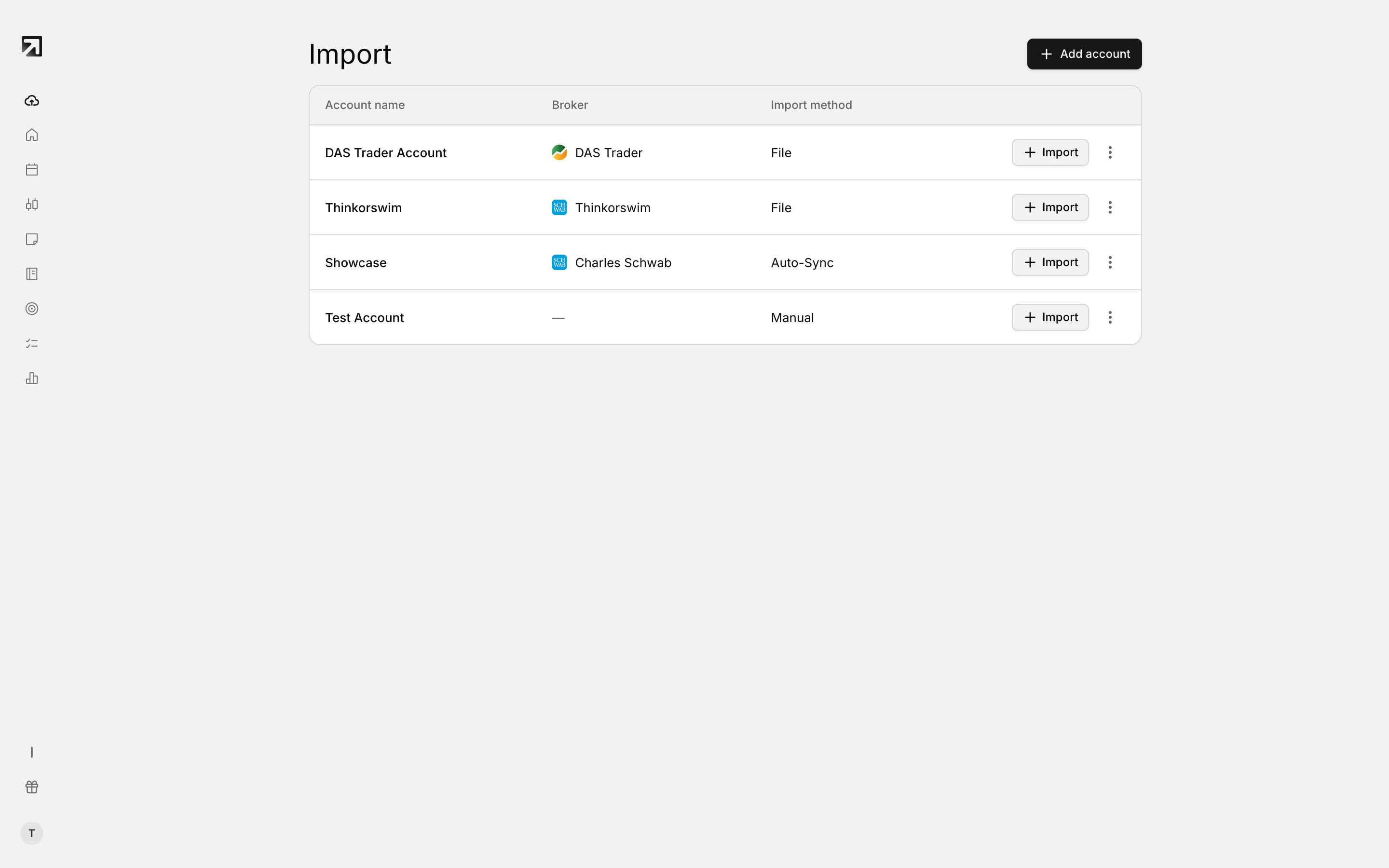 Pick your broker to start an import. Use Custom CSV if yours is not listed.
Open Add Trades in the left sidebar to start. Pick your broker, then choose an import method. New accounts default to the name Main Account.
Auto-sync
- Open Add Trades in the left sidebar.
- Select your broker.
- On Select Import Method, choose Auto-sync. The card shows Beta when available.
- Complete the broker connection steps on screen.
If Auto-sync is not available, the card shows Not available for this broker yet.
File upload
- Open Add Trades in the left sidebar.
- Select your broker.
- On Select Import Method, choose File upload.
- Confirm the account and broker.
- Follow the broker steps in the Integration Guide on the right.
- Set Time zone to match your broker's trade timestamps. This field is required.
- For DAS Trader, set Trade Date, required for DAS.
- If your broker asks for Date Format or File Currency, choose values that match your export.
- Drop your file, or browse to select it. Supported files are CSV, TXT or HTML up to 50 MB.
After a successful upload you see File uploaded! and Processing your trades...
File checks before upload
- Empty file — re-export from your broker with at least one trade.
- File too large — maximum size is 50 MB. Export a smaller date range.
- HTML only — cTrader, MetaTrader 4, MetaTrader 5 and Match Trader accept HTML files only.
- Time zone missing — select a time zone before uploading.
- DAS trade date missing — select a trade date for DAS Trader imports.
Add manually
- Open Add Trades.
- Select your broker, or continue with an existing account.
- Choose Add manually.
- Pick the asset type: Stock, Option, Future, Future Option, Forex, Crypto or CFD.
- Enter the symbol and at least one execution with datetime, quantity and price.
- Click Save Trade.
Check Import History after you import
Confirm each import under Settings > Import History. Every row shows Status, File, Broker, Trades, Duplicates and Date.