
Enter a trade by hand when you want full control over each fill, with no file upload required.
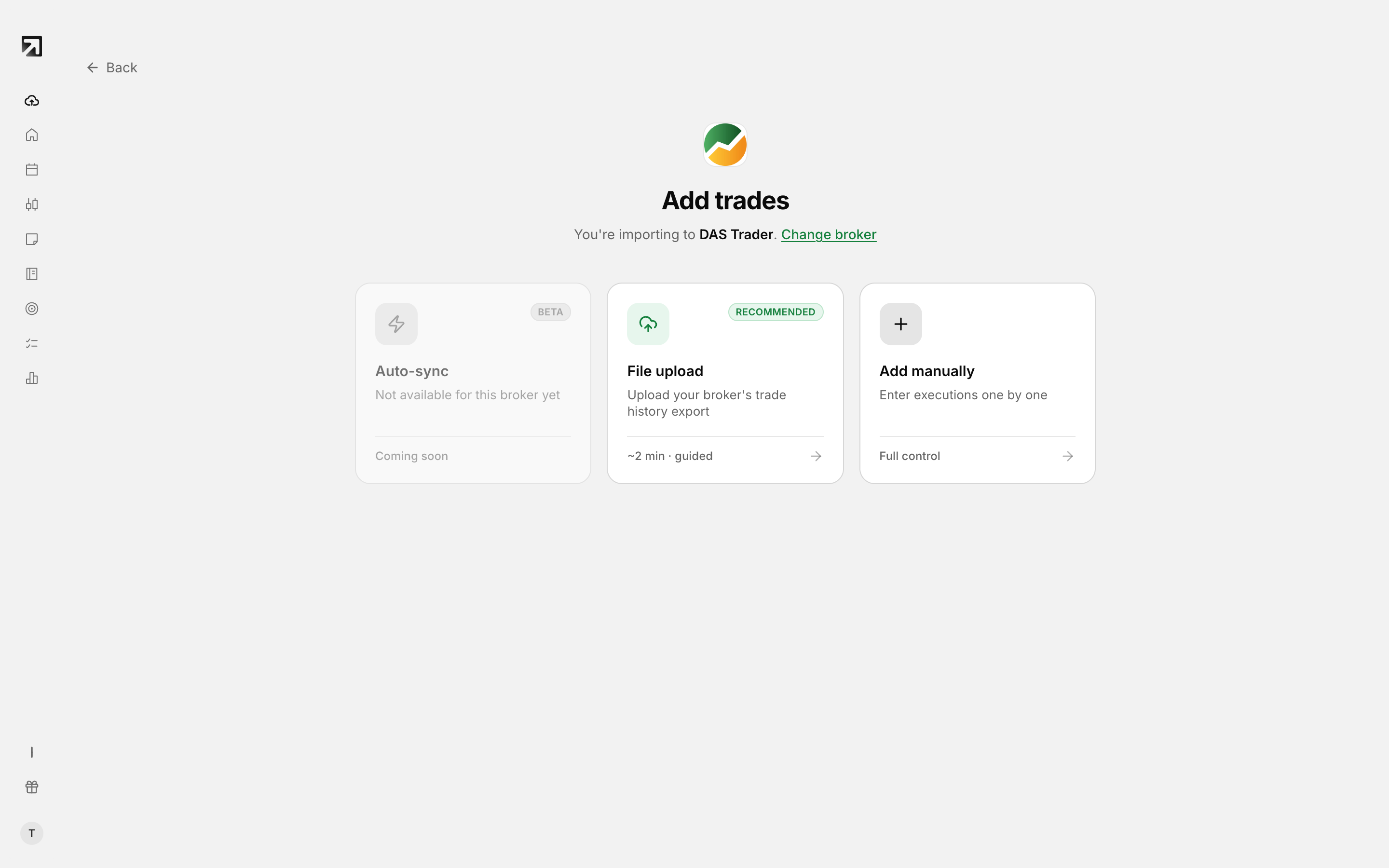 Choose Manual entry instead of uploading a file.
Open the manual trade form
- In the left sidebar, click Add Trades.
- Under Manual, select Add manually.
- Choose the trading account if you are asked for one.
From an account's trades page, you can also click Add manually next to Import trades.
Choose the asset type
Under Asset Type, select Stock, Option, Future, Future Option, Forex, Crypto or CFD.
For Option and Future Option, the symbol field is labeled Underlying symbol.
Enter the trade
- Enter the Symbol.
- In the Executions section, set each fill: Date & Time, Qty, Side, Price, Comm and Fee.
- If the asset type needs them, also fill Exp Date, Type and Strike, or Multiplier.
- To add another fill, click Add execution. You cannot remove the last row.
- Click Save Trade.
New execution rows start with side Buy and zeros. Update those values before you save.
What you need before Save Trade works
- A non-empty symbol
- At least one execution
- A valid date and time on every execution
- Quantity greater than zero on every execution
- A valid price of zero or higher on every execution
Executions must also fully close the position. Net quantity for the symbol must be zero. If the position is still open, save fails with Executions must fully close the position.
After you save
Rize Trade confirms with Trade saved and opens the new trade. On wider screens a Trade Summary sidebar shows estimated net P&L, average buy/sell, quantities, commissions, fees and execution count.