
Import paper, simulator and prop firm trades the same way you import live trades. Rize Trade does not automatically detect whether a trade is sim or live beyond the account setup you choose.
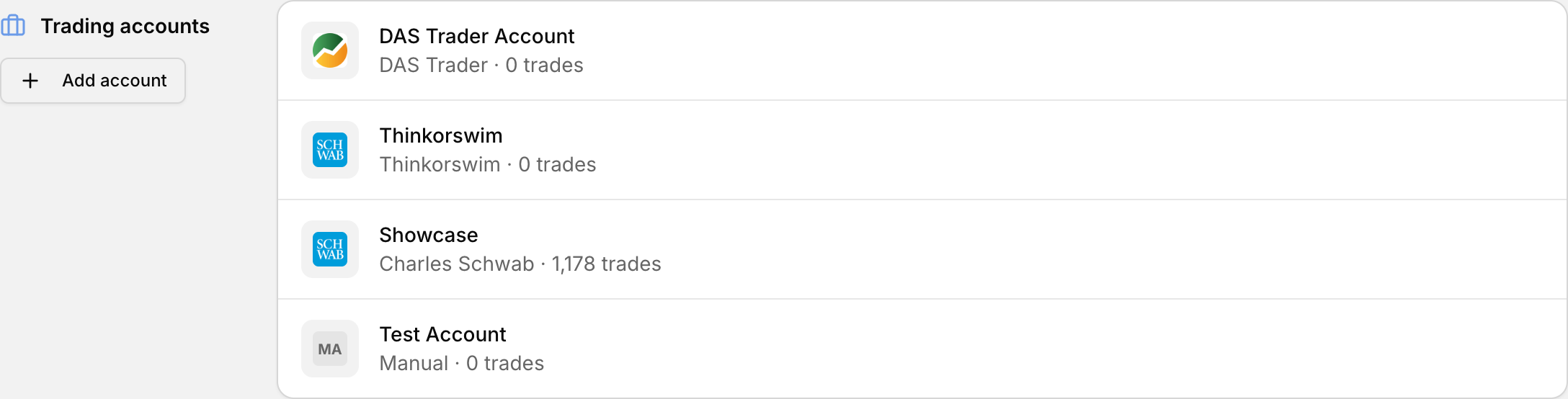 Keep simulator trades in their own account.
Use a separate Rize Trade account for paper, sim or prop work so those results stay separate from live P&L.
Prop firm accounts
Import through your trading platform, select demo as the account type, and track everything the same way.
Supported prop and challenge platforms include TopstepX and FTMO.
TradingView paper trades
- Log in to TradingView and open any chart.
- At the bottom, click Paper Trading.
- Open the Order History tab. Click the three dots and enable every column: Side, Type, Qty, Price, Fill Price, Status, Commission, Closing Time and Order ID.
- Click the TradingView logo, choose Export data, select Order History, then Export.
- In Rize Trade, open Add Trades, choose your account, and upload the CSV. For paper trading, select Other as the broker company.
Missing columns are the most common cause of failed TradingView uploads.
Warrior Sim
- Open the Position Manager in the simulator.
- Set columns to this exact order only: Date, Time, Symbol, Shares, Price, Side.
- Use execution price for the Price column, not order price.
- Right-click the trades list, choose Export, and save as CSV.
- In Rize Trade, select Warrior Sim and upload.
TC2000 paper accounts
- Open the TC2000 desktop app.
- In the account dropdown, choose the brokerage or paper account.
- Open Trading > Export Trade History.
- Pick your date range, choose Comma delimited, then export.
- Upload the CSV under Add Trades.
TopstepX
- Log in and open the Trades tab.
- Click Export, choose your date range, save as CSV.
- Upload with TopstepX selected.
If the file is empty, widen the date range.
FTMO
- Log in to the FTMO Client Area.
- Open Accounts Overview, then MetriX.
- In Trading Journal, click Export and choose CSV.
- Upload with FTMO selected.
Keep paper and live stats separate
Give paper, simulator and prop imports their own Rize Trade accounts, and name each clearly.