
To pull in today's trades, use Auto-sync with Sync Now when your broker supports it, or export today's file and upload it.
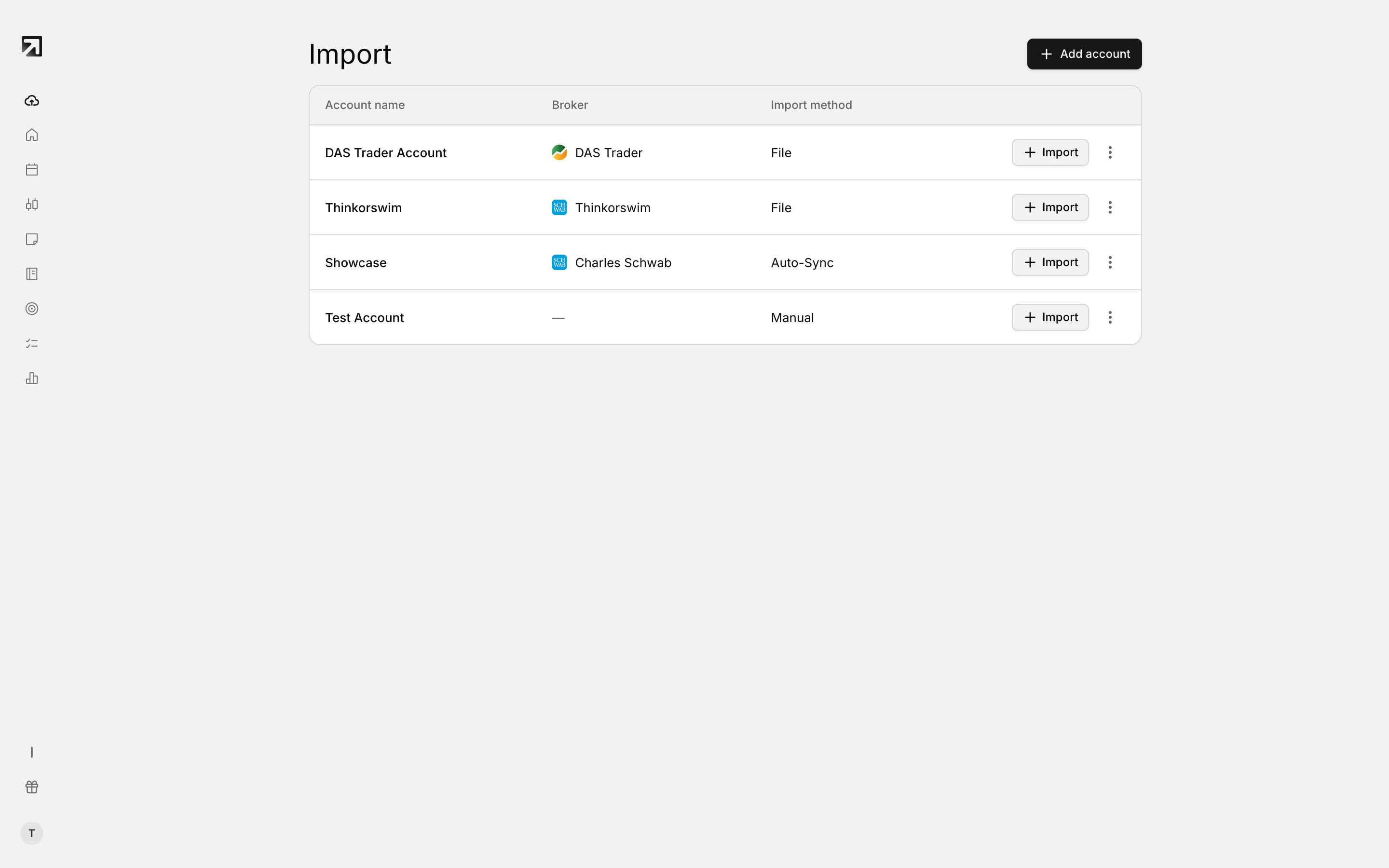 The broker picker, where every import starts.
Same-day Auto-sync
If your broker is connected with Auto-sync, Rize Trade pulls trades every 2 hours.
- Open your profile icon, then select Settings.
- Open Broker connections.
- Find the trading account that supports sync.
- Turn on Auto-sync if it is off.
- Click Sync Now to pull the latest trades without waiting.
While a sync is running, the button shows Syncing...
Auto-sync and Sync Now only appear for accounts that support broker sync.
DAS Trader: select a trade date
DAS Trader Pro CSV exports do not include dates, so you must pick the trade date before importing.
- Export your trades to CSV from the DAS Trader Pro Trades window.
- On the import screen, set Trade Date using Select trade date.
- Upload the CSV.
If you skip the date, Rize Trade blocks the upload.
TopstepX: empty file on same-day exports
Export from the TopstepX Trades tab, not the Orders tab, choose your date range and save the CSV.
If the file comes out empty, widen the range: set the start date to yesterday and the end date to two days from today.
Match Trader: closed HTML first, then open
- Open the Closed positions tab, pick your date range, download as HTML and upload.
- After closed trades are in, open the Open positions tab and upload that file next.
CSV is not supported for Match Trader.