
When an import fails or trades do not show up, match the message or symptom below, fix the file or settings, and re-upload.
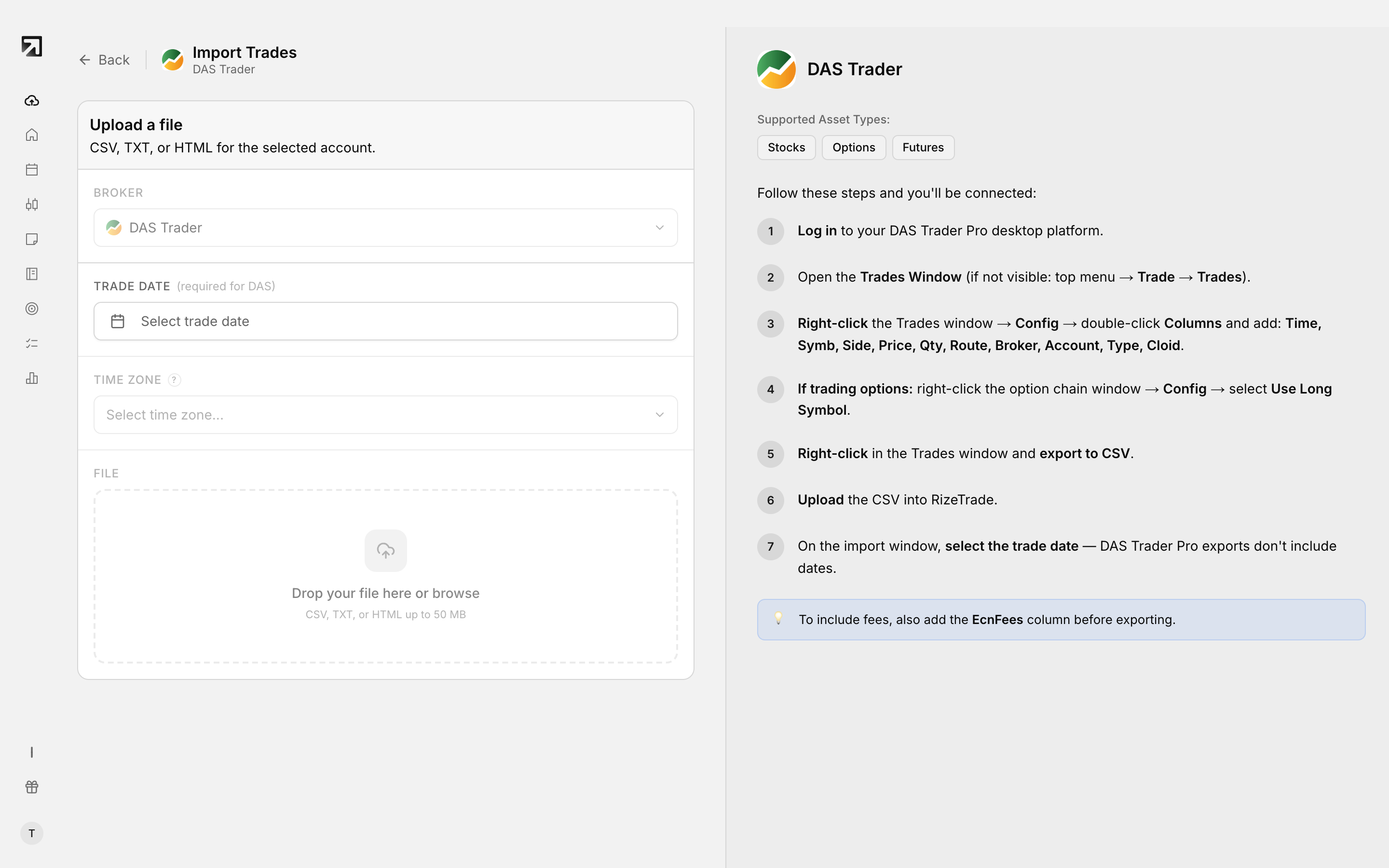 The upload step, with the settings that resolve most import problems.
Quick path
- Read the exact error title on the upload screen, or the Failed row in Import History.
- Open the matching section below.
- Fix the export or import settings, then upload again to the same account.
- Confirm Status, Trades and Duplicates under Settings > Import History.
Overlapping date ranges on the same account are safe. A high Duplicates count means those fills were already imported, not that the file is broken.
File type and wrong broker
Wrong File Type, Excel, PDF or Numbers
The file is not CSV, TXT or HTML, or an HTML-only broker received a CSV.
Fix: re-export in the format that broker needs. Excel workbooks must be saved as CSV (Comma delimited) first. cTrader, MetaTrader 4, MetaTrader 5 and Match Trader accept HTML only.
Wrong broker file or Wrong File Format
The export does not match the selected broker's parser.
Fix: in Add Trades, select the broker that produced the file. If your platform is not listed, use Custom CSV.
Not a Valid CSV or corrupted file
The file is not delimited text, is binary renamed as .csv, or has no commas, tabs or semicolons in the first lines.
Fix: re-export as CSV or TXT. Do not upload PDF or Excel workbooks.
Missing columns and bad rows
Missing Symbol column or blank symbols
No symbol header, blank symbol cells, or on Lightspeed, CUSIP-only rows without a ticker.
Fix: add or rename a header to Symbol, Ticker or Symb, and fill every row. See A Symbol column is required but was not found.
Missing Quantity or Missing Price
Headers or cells for size or fill price are missing or not numeric.
Fix: add quantity and price headers, fill every row, save as CSV. See Missing Quantity or Missing Price.
Error on a specific row
A bad row: extra commas, blank required fields, merged cells or broken CSV structure.
Fix: open the file, fix or remove the bad row, re-export as CSV. See Error on line X when importing.
Date, time and time zone
Incorrect Date Format or invalid date
The Date Format control, or the broker default, does not match the pattern in the file.
Fix: open the CSV, note the real pattern, set Date Format and the required Time zone. See Invalid date found.
Time zone missing
Time zone is required on every file upload. Timestamps are read in that zone, then stored in UTC.
Fix: set Time zone to match the timestamps in the file. If times look shifted after a successful import, see Why are my entries and exits on the wrong dates?
DAS Trader: Trade Date required
DAS exports do not include dates.
Fix: set Trade Date to the session date for that file, then upload.
Empty file or no trades found
Empty File, File Has No Data, No trade executions
Zero-byte file, header-only export, broker filters left the download empty, wrong export type, or no trades in the date range.
Fix: clear broker filters, widen the date range, export the trade or fills report rather than a blank orders view. See No trade executions found.
All executions were already imported
Every fill already exists in that trading account. Deduping skipped them on purpose.
Fix: check Import History Duplicates, then open Trades on the correct account with filters cleared.
Import says Success but Trades looks empty
Still processing, duplicates only, wrong account selected, or active filters hiding rows.
Fix: wait out Queued and Processing, confirm Trades against Duplicates, pick the right account, click Clear all filters. See My import says successful but no trades appear.
Size, timeout and queue
File Too Large or Too Many Trades
Client max is 50 MB per file; row max is 200,000.
Fix: export smaller date ranges. See File too large.
504 or Server Temporarily Unavailable
Very large files can exceed the processing window of 300 seconds.
Fix: wait a minute, split the export by day or week. See 504 Gateway Timeout on large imports.
Queued, Processing, Failed or Something Went Wrong
Fix: wait while Queued or Processing. On Failed, read the error, fix the file, use Retry Import. See Import queued or something went wrong.
Broker-specific quirks
- TopstepX — export from the Trades tab, not Orders. Widen the range from yesterday to two days from today.
- Match Trader — CSV is not supported. Upload Closed positions HTML before Open positions.
- MetaTrader 4 / 5 and cTrader — HTML only, English UI. Set File Currency.
- Interactive Brokers — Trade Confirmation Flex Query with Date Format
yyyyMMdd, Time FormatHHmmss, semi-colon separator. - FTMO — keep the original semicolon CSV from MetriX. Set File Currency.
- Rithmic R Trader — export Completed Orders, one day per file.
- TradeStation — exports are limited to 6 months per download.
- Questrade — some accounts allow only the last 30 days.
- MotiveWave — default export caps at 2,000 executions. Raise it in Trade History settings.
- Moomoo — desktop History exports only. Only Filled rows import.
- Lightspeed — CUSIP-only rows without a ticker are skipped.