
Connect ProReports once with your subdomain and API token, then let Rize Trade pull MetaTrader forex trades in automatically with Auto-sync.
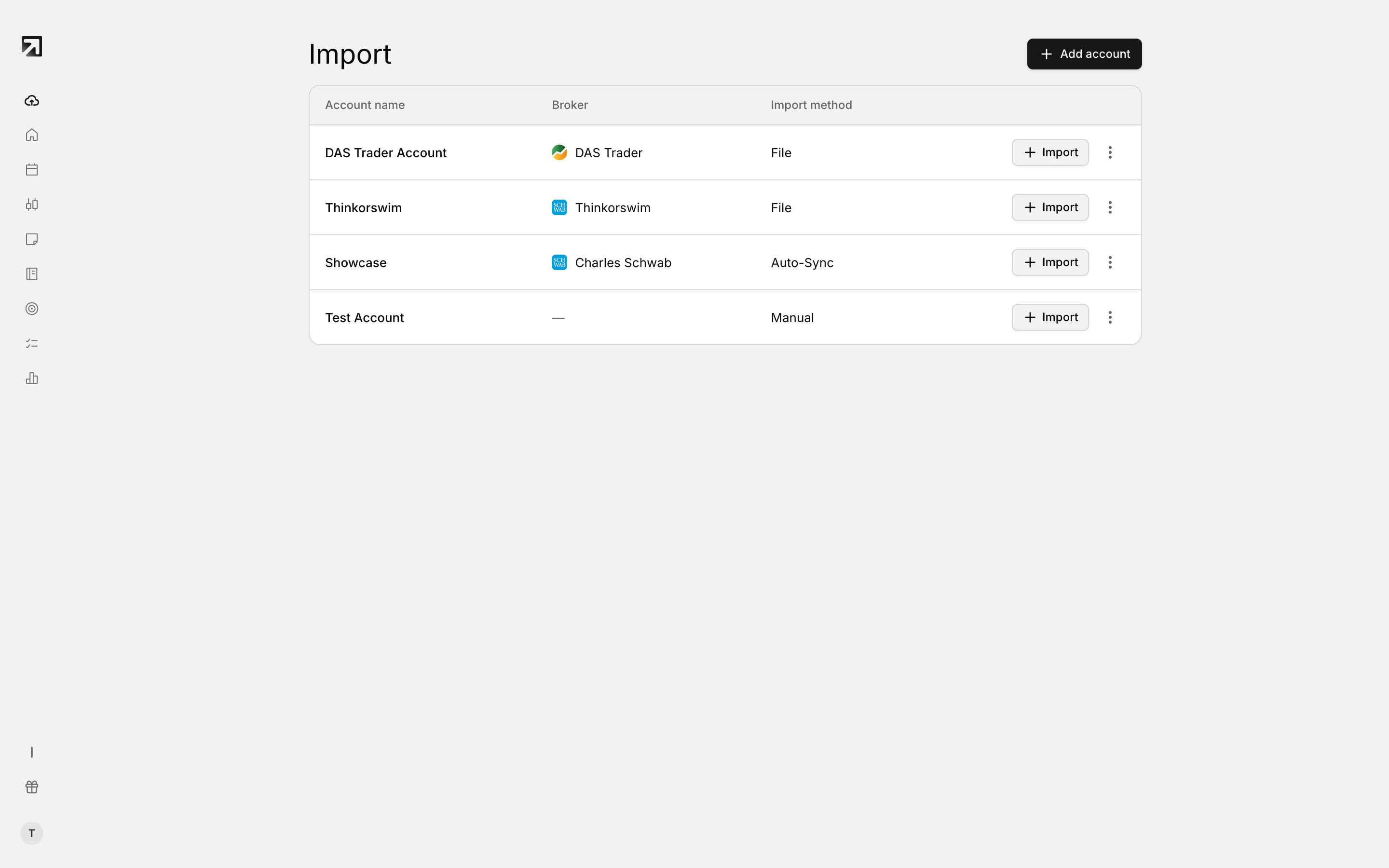 Find your broker in the picker to begin.
ProReports supports API auto-sync only, with no file upload.
Before you connect
- Open your ProReports dashboard.
- Go to Profile > API Tokens.
- Create a token and copy it. You will paste it into Rize Trade with your ProReports subdomain, the part before
.propreports.com.
Rize Trade needs both the subdomain and the API token before Connect becomes available.
Connect from Add Trades
- Open Add Trades in the left sidebar.
- Select ProReports.
- On Select Import Method, choose Auto-sync.
- In the Connect ProReports dialog, enter your Subdomain and API Token.
- Click Connect.
On success, Rize Trade shows how many accounts linked, then opens Settings > Broker Connections.
Connect from Settings
- Open Settings and go to Broker Connections.
- Click Connect ProReports.
- Enter the same Subdomain and API Token.
- Click Connect.
Linked accounts appear with status Connected, plus Last synced or Never synced.
Turn on Auto-sync and sync now
- Open Settings > Broker Connections.
- Find your ProReports account.
- Turn on the Auto-sync toggle. Trades sync every 2 hours.
- Click Sync Now anytime you want a fresh pull.
Disconnect ProReports
- Open Settings > Broker Connections.
- Open the disconnect control on the ProReports connection.
- Confirm in the Disconnect ProReports? dialog.
- Click Disconnect.
Trades already imported stay in Rize Trade. You cannot sync new trades until you reconnect.
If connect fails
- Please enter both subdomain and API token — enter the subdomain only, the field already shows
.propreports.com, and paste the full token. - Missing subdomain or token — reopen the dialog and fill both fields.
- Could not connect to ProReports — confirm the subdomain matches your firm's URL, then create a new token and try again.
- No accounts found — the token authenticated but returned no accounts. Create a token with account access.
- This ProReports instance is already connected — manage it from Settings > Broker Connections instead.