
Trade Grouping settings control how Rize Trade processes your imports.
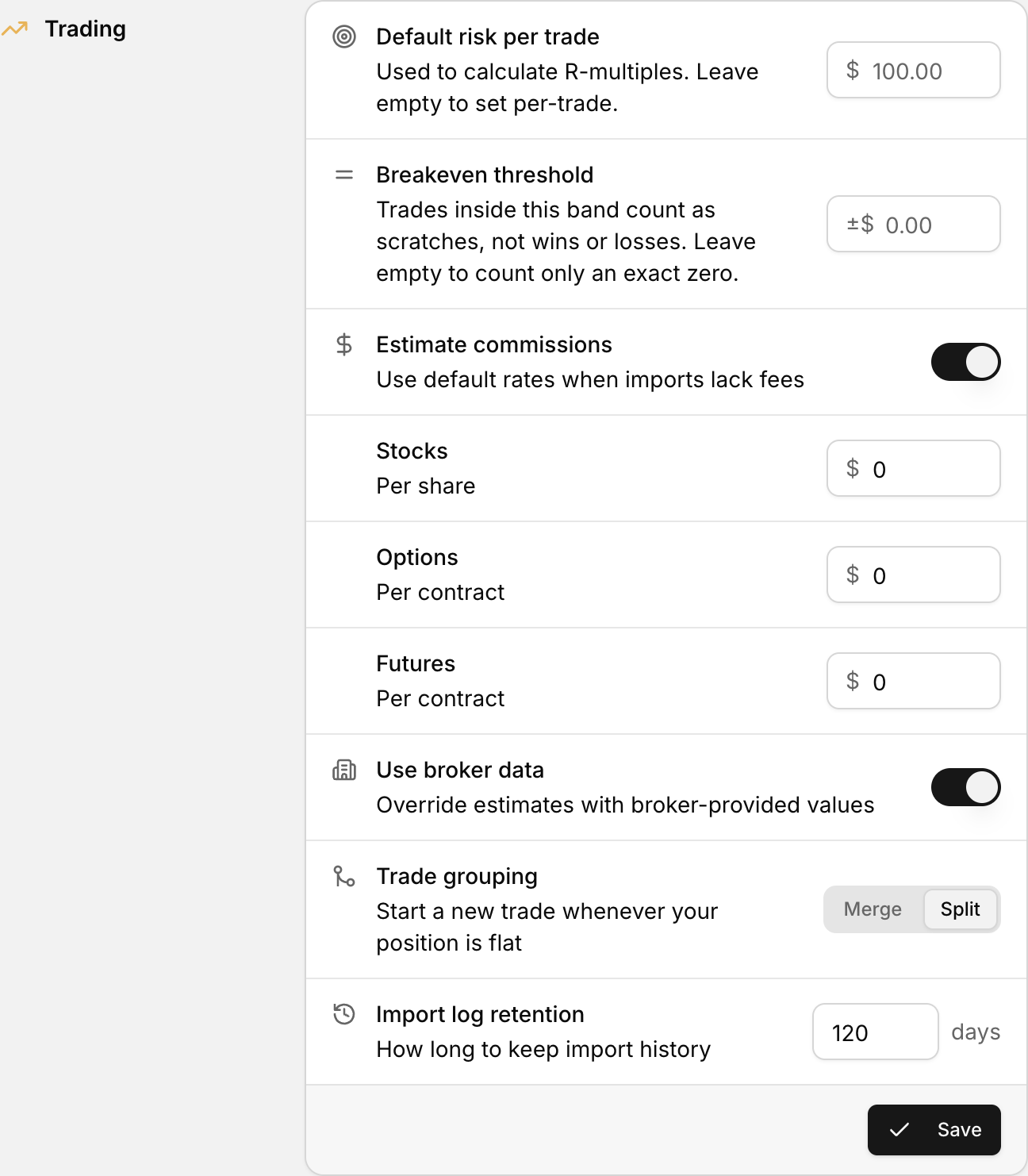 Trade grouping controls how executions are combined into a single trade.
How to open import settings
- Click your profile icon in the bottom-left corner.
- Select Settings.
- Scroll to the Import Settings section.
Trade grouping controls explained
Trade Grouping, on or off
Turns grouping on or off for imported trades.
When to use it: if you scale into or out of positions, you probably want this on. It groups related fills into one trade instead of logging each execution separately.
For example, you buy 100 shares of NVDA in two fills of 50. With grouping on, that shows as one trade entry, not two.
Split on Position Reversal
Controls what happens when you flip direction, such as going from long to short in the same session.
- On: the long and the short are recorded as two separate trades
- Off: the reversal stays grouped with the original position
When to use it: if you trade futures or scalp stocks and frequently reverse direction, turn this on so longs and shorts do not mix into one trade.
Merge Window (minutes)
Sets the time window used to decide whether executions belong to the same trade.
For example, with a 5 minute window, any re-opens of closed trades on the same ticker within 5 minutes get grouped together.
When to adjust: scalpers taking rapid entries may want a shorter window. If you trade the same symbol several times a day and view that as one trade, use a higher window.
Saving your changes
- Make your adjustments in the Trade Grouping fields.
- Click Save Import Settings.
Your new settings apply to future imports. They do not retroactively change trades already in your account.