
Configure multi-leg option imports under Trade Grouping in Settings > Trade settings. There is no separate multi-leg toggle. When your broker file includes position effect data, Rize Trade groups those legs automatically.
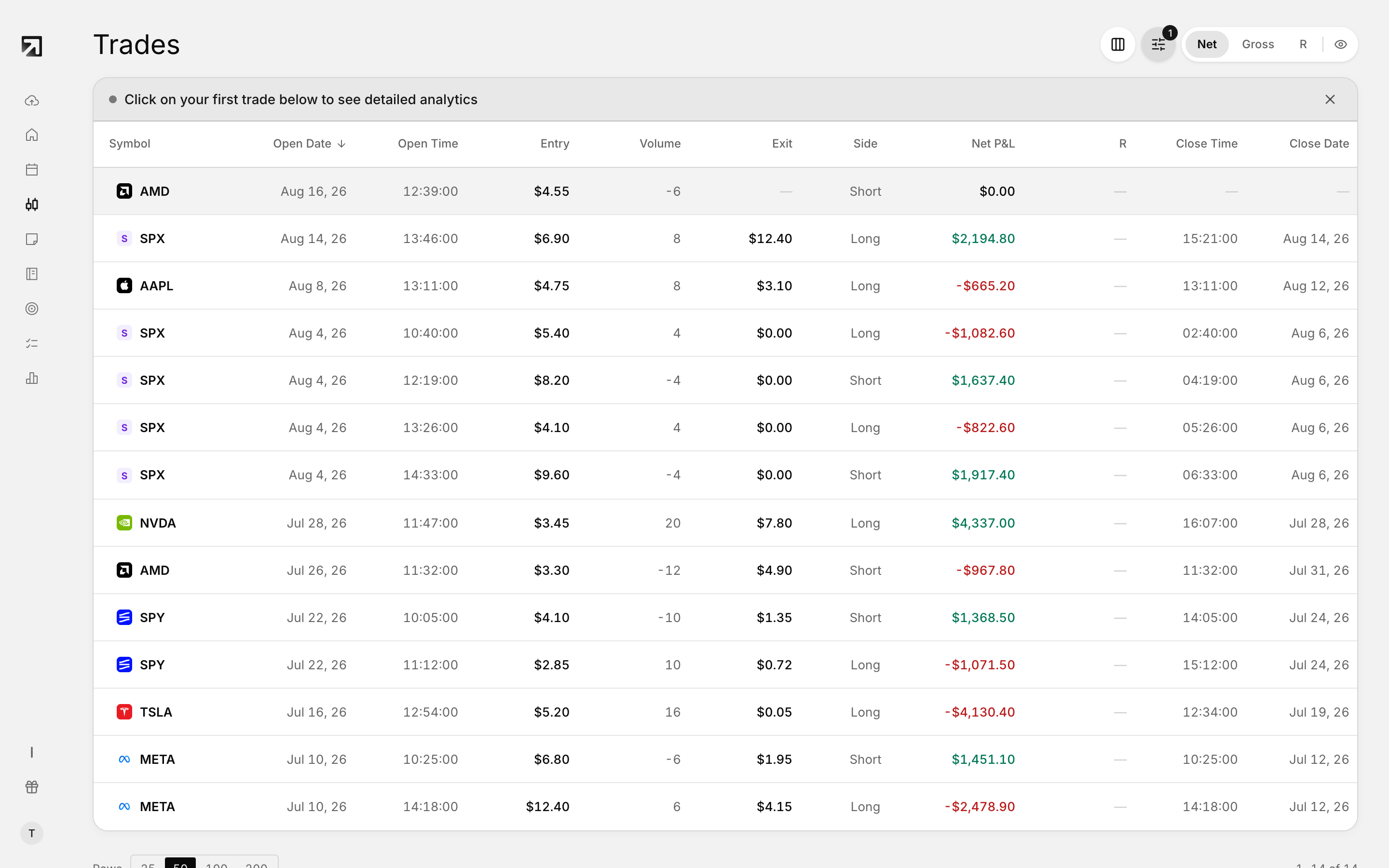 Multi-leg structures after import, with each leg kept separate.
How multi-leg imports are grouped
When an import includes position effect data, open or close on each fill, Rize Trade switches to position-effect grouping on its own.
Your Trade Grouping choice still controls how executions merge or split when position effect is not driving the group. After import, Rize Trade can also auto-tag the trade with a detected strategy.
Set Trade Grouping for multi-leg imports
- Click your profile icon, then open Settings.
- Open Trade settings.
- Under Trade Processing, find Trade Grouping.
- Select Merge when possible or Split when possible.
- Set Merge Window (minutes) if you use merge behavior. Default is 60, range 0 to 1440.
- Click Save Changes.
What each grouping option does
- Merge when possible — merge executions into as few trades as possible when they occur on the same day.
- Split when possible — create a new trade whenever a new execution is encountered while your position is flat.
- Merge Window (minutes) — time window to merge flat positions into the same trade.
These settings apply to future imports only.
Regroup trades you already imported
- Save your Trade Grouping and Merge Window choices.
- Remove the trades imported with the wrong grouping.
- Import your trades again.