
Open Trades in the left sidebar, select the trades you want to update, then use Actions to review, export, tag, assign a strategy, transfer or delete them in bulk.
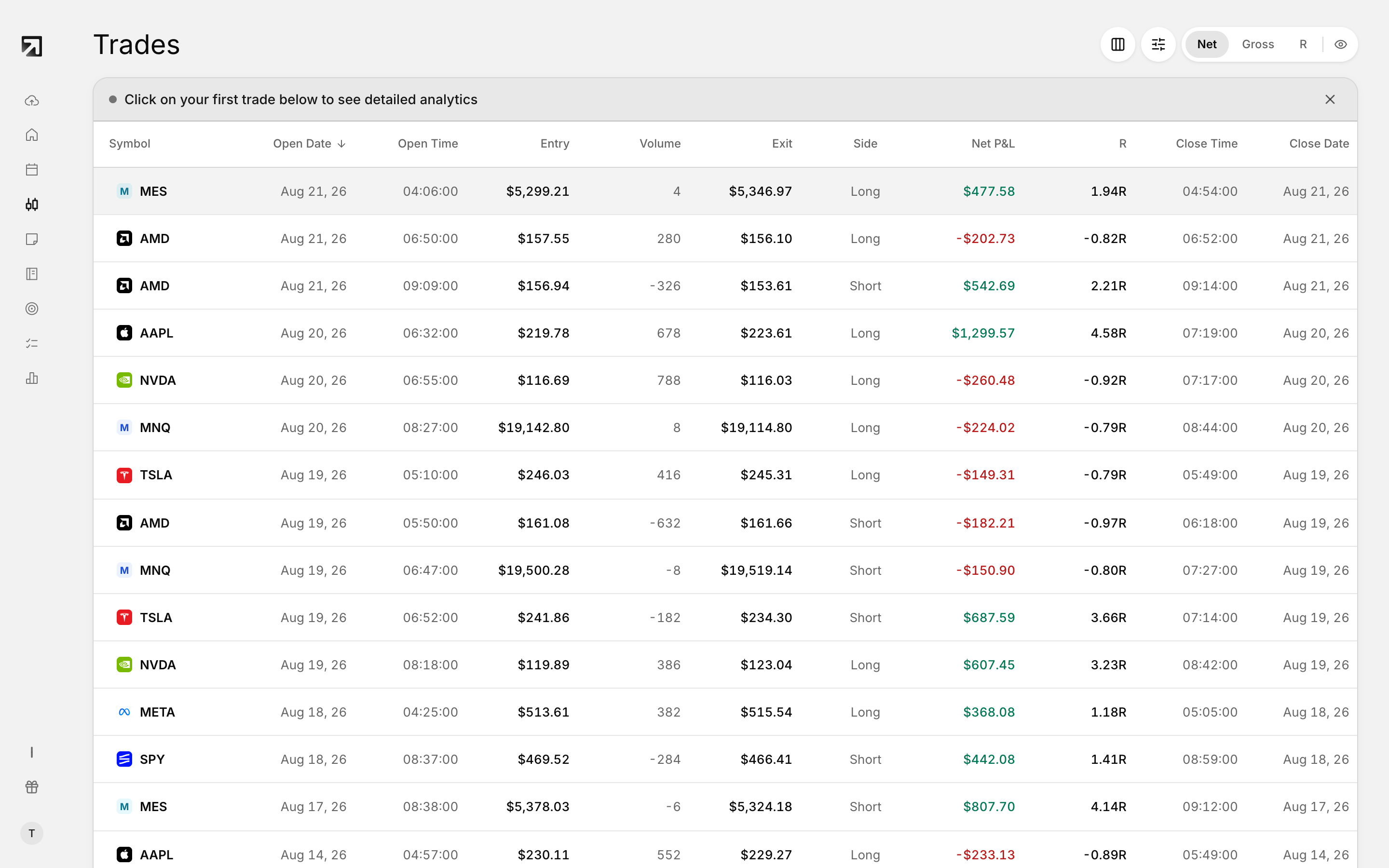 The Trades page. Every execution you have imported, with columns you can sort and filter.
Open the Trades page
- In the left sidebar, click Trades.
- Or open a trading account and use its trades page for that account only.
Select trades
- Tick the checkbox on each trade row you want to include.
- Use the header checkbox labeled Select all trades to select every trade on the current page.
- If a banner says all trades on this page are selected, use Select all so the selection covers every matching trade.
Clear the selection with the X on the bar when you are done.
Use bulk Actions
Mark as reviewed
Marks the selected trades as reviewed so you can clear review work in bulk.
Mark as not reviewed
Clears the reviewed state when you need to review them again.
Export trades to CSV
Downloads a CSV of the selected trades loaded on the current page, named trades-export-YYYY-MM-DD.csv.
Add to strategy
Assigns a strategy to every selected trade. If you have no strategies yet, the dialog shows No strategies created yet.
Add tag
Adds a tag across the selected trades so you can filter and report on the same label later.
Transfer trades
Moves the selected trades to another trading account on the same login. If no other account exists, the dialog shows No other accounts available.
Delete trades
Permanently removes the selected trades after you confirm. See How to delete trades.
Optional table columns
Use Select columns to show or hide fields. Available columns include Executions, Tags, Account, Status, Gross P&L, Total Fees, Commission, Duration, Rating and Currency.
You can choose All, None, or Default, or toggle columns one at a time.