
Close an expired, assigned or exercised option by importing the broker's closing fills or manually entering matching executions until net quantity is zero. Rize Trade does not have a separate Expire, Assign or force-close button.
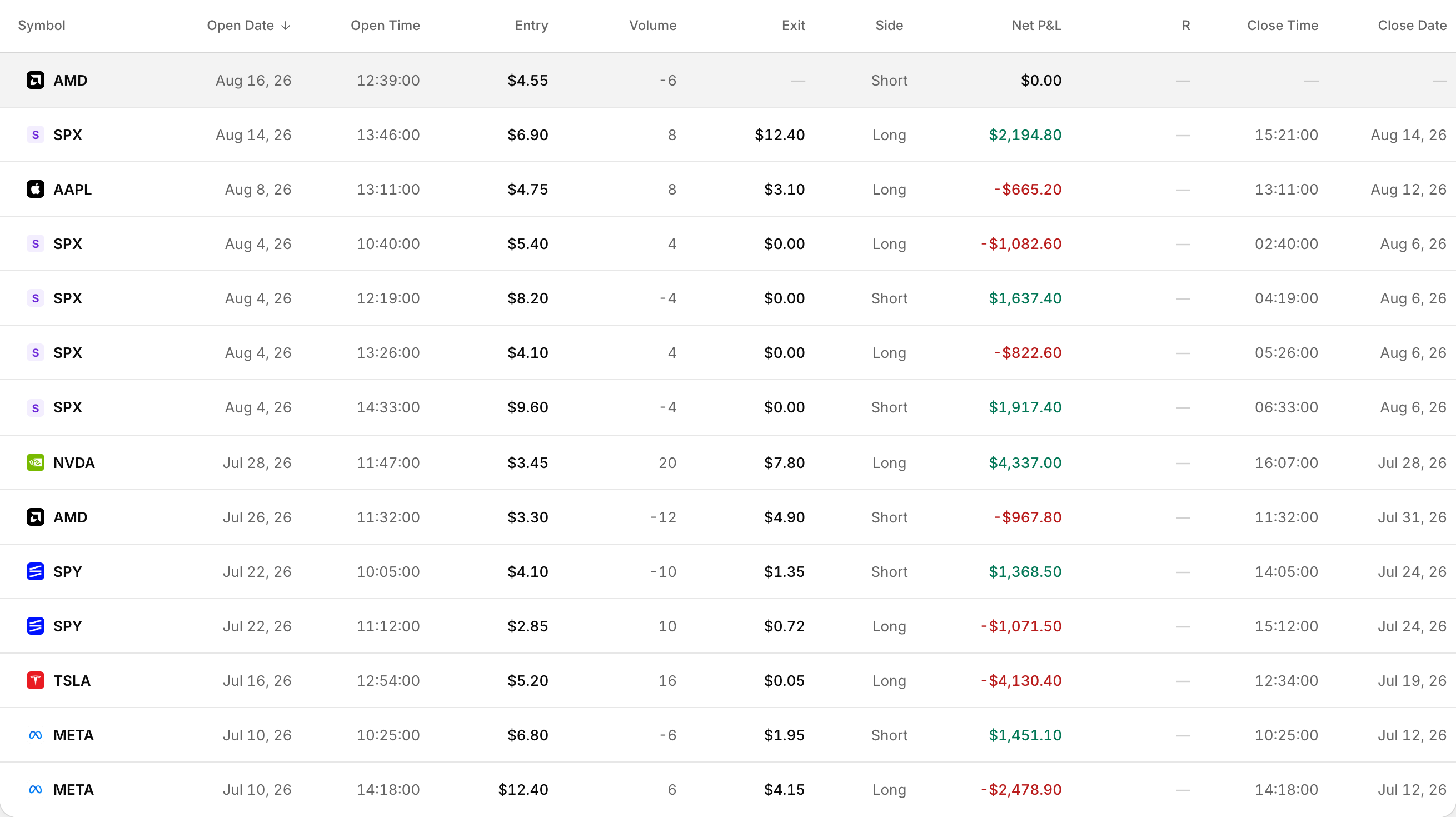 Expired legs show a $0.00 exit once they are closed.
A trade stays open until the buys and sells flatten the position.
Import the closing fills from your broker
- Open Add Trades in the left sidebar.
- Choose your broker, then pick File upload or Auto-sync.
- Upload the export that includes the closing activity, or let Auto-sync pull the latest fills.
If an earlier import left the option open because the close was missing, bring in a file that covers the assignment, exercise or expiration dates, not only the original entry.
Manually enter the closing executions
Manual entry creates a new trade. You cannot attach a close fill to an existing open trade from trade detail.
- Open Add Trades, then choose Add manually.
- Select the Option or Future Option tab.
- Enter the Underlying symbol, then fill each execution row with the same contract details: Exp Date, Type and Strike.
- Add buys and sells until the Net qty badge shows 0.
- Click Save Trade.
What you can edit on an open trade
Trade detail auto-saves these fields after a short delay:
- Initial risk
- Profit target
- Stop loss
- Trade rating
- Commission
- Transaction fees
- ECN fees
There is no add-execution control or mark-closed action on an existing open trade.
Bulk Actions do not close trades
Bulk Actions include Delete trades and Transfer trades, not close, expire or assign. See How to Delete Trades.