
Create and manage trading accounts from Settings > Trading accounts, the account switcher, or Add Trades. Each account keeps one broker, prop firm, or sim setup organized so your journal and reports stay clean.
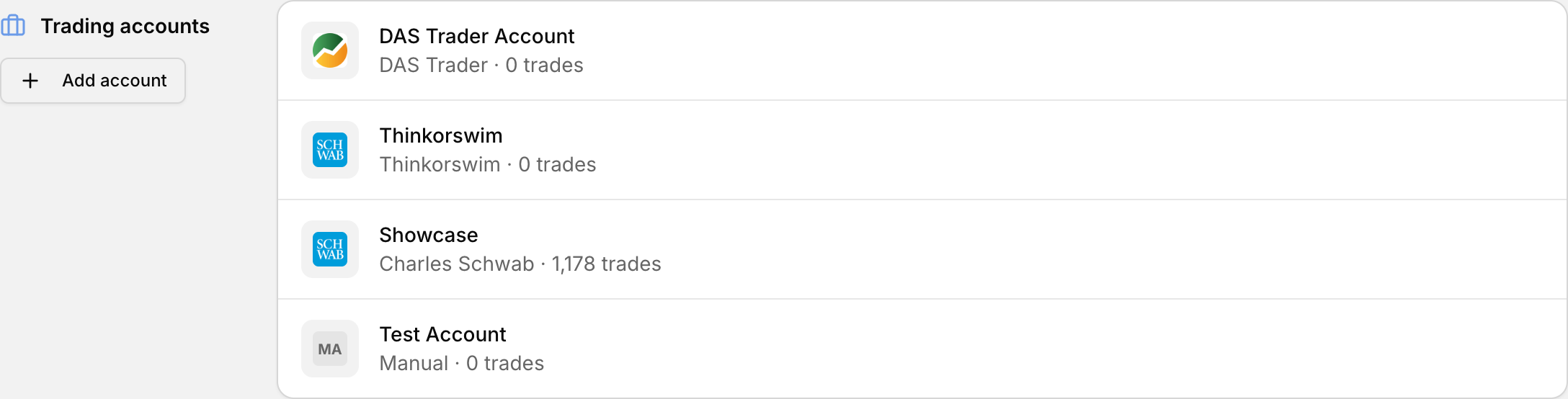 Your trading accounts, managed from Settings.
Where to manage your accounts
- Profile icon > Settings > Trading accounts
- Account switcher in the left sidebar > Manage accounts
When you have no accounts yet, you see No trading accounts and a Create account button.
Plan limits cap how many active trading accounts you can keep. See How many trading accounts can I track on each plan?
Create a trading account from Settings
- Open your profile icon > Settings > Trading accounts.
- Click Add account. Rize Trade opens Create New Trading Account.
- Enter an Account Name and choose a Broker, both required. You can also fill Account Number, Base Currency and Description.
- Click Create Account.
Create an account while importing trades
- Open Add Trades.
- Select your broker, then choose how to bring trades in.
- Finish the import for that account.
Account actions in Reports
- Import or Add Trades — opens Add Trades for that account
- View Dashboard — opens your dashboard
- View Trades — opens your trades list
Transfer trades between accounts
From an account's trades view, select the trades you want, open Actions, and choose Transfer trades. See Transfer trades between trading accounts.
Transfer works between trading accounts on the same Rize Trade login. It does not move data between two different user logins.