
Open Calendar in the left sidebar to review your trading days by year or month.
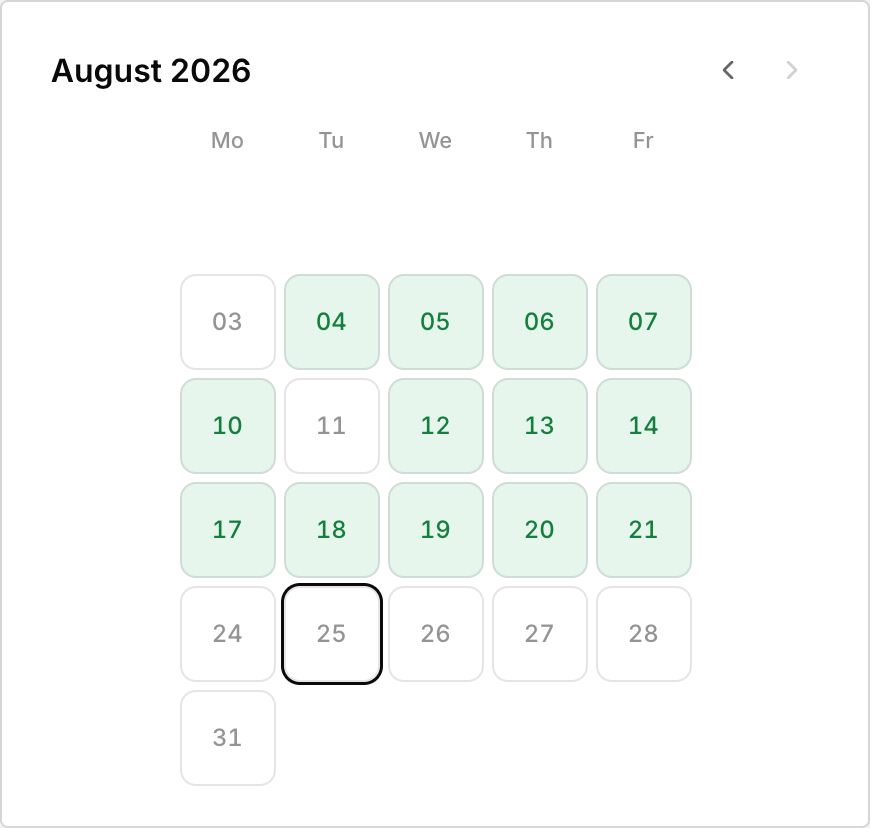 The month calendar widget on the Dashboard. Green days are net winners, red days net losers.
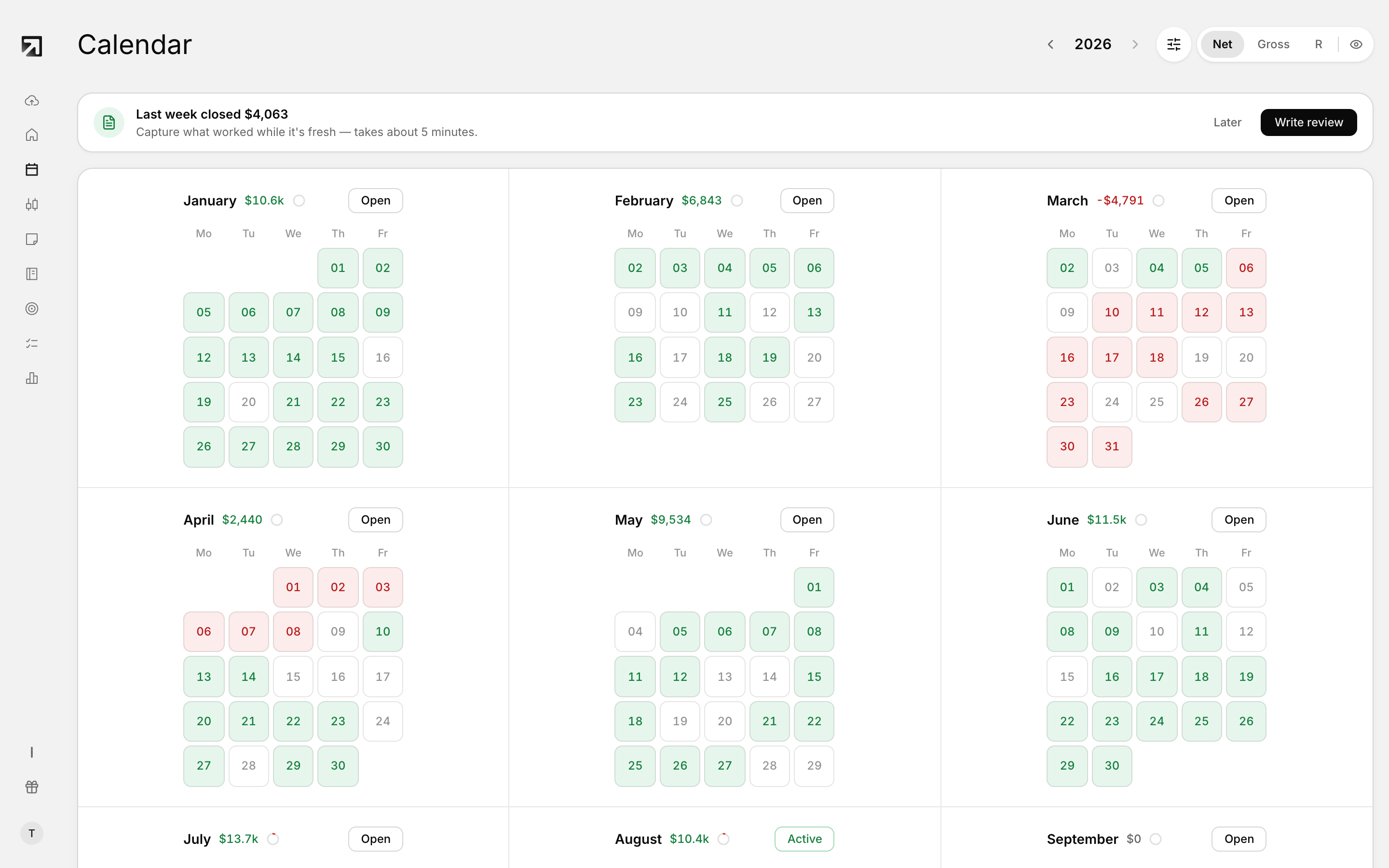 The full Calendar page, showing each day's P&L and trade count across the month.
Year overview and month view
- Year overview — opens with no month selected. You see the full year and can move between years.
- Month view — opens when a month is selected. You see one month in detail.
In month view, use the back control to return to the year overview.
Select a month
- On the Calendar, open Select Month.
- Choose a month to open month view.
If no months are available for the current year, the dialog shows No months found.
Read the month view
- The month heading shows the month name and year.
- Weekday headers run Sunday through Saturday, then Total.
- Each day can show the day number, trade count, P&L, a journal marker, and a discipline meter.
Open a day in the journal
- Click the day you want to review.
- Rize Trade opens the journal for that date.
Run a Monthly Review
- Open the month you want to review.
- Click Monthly Review.
- While the review is being created, the button shows Generating...
Use the discipline meter
- Find a day with a discipline meter.
- Click the meter to open Discipline.
Clicking the meter opens Discipline instead of the journal day.
When the Calendar looks empty
- No accounts selected — select one or more accounts from the sidebar.
- No calendar data — no trading activity found for this period.