
Open Notebook in the left sidebar to keep trade notes, daily journals, lessons, playbooks and watchlist items in one place.
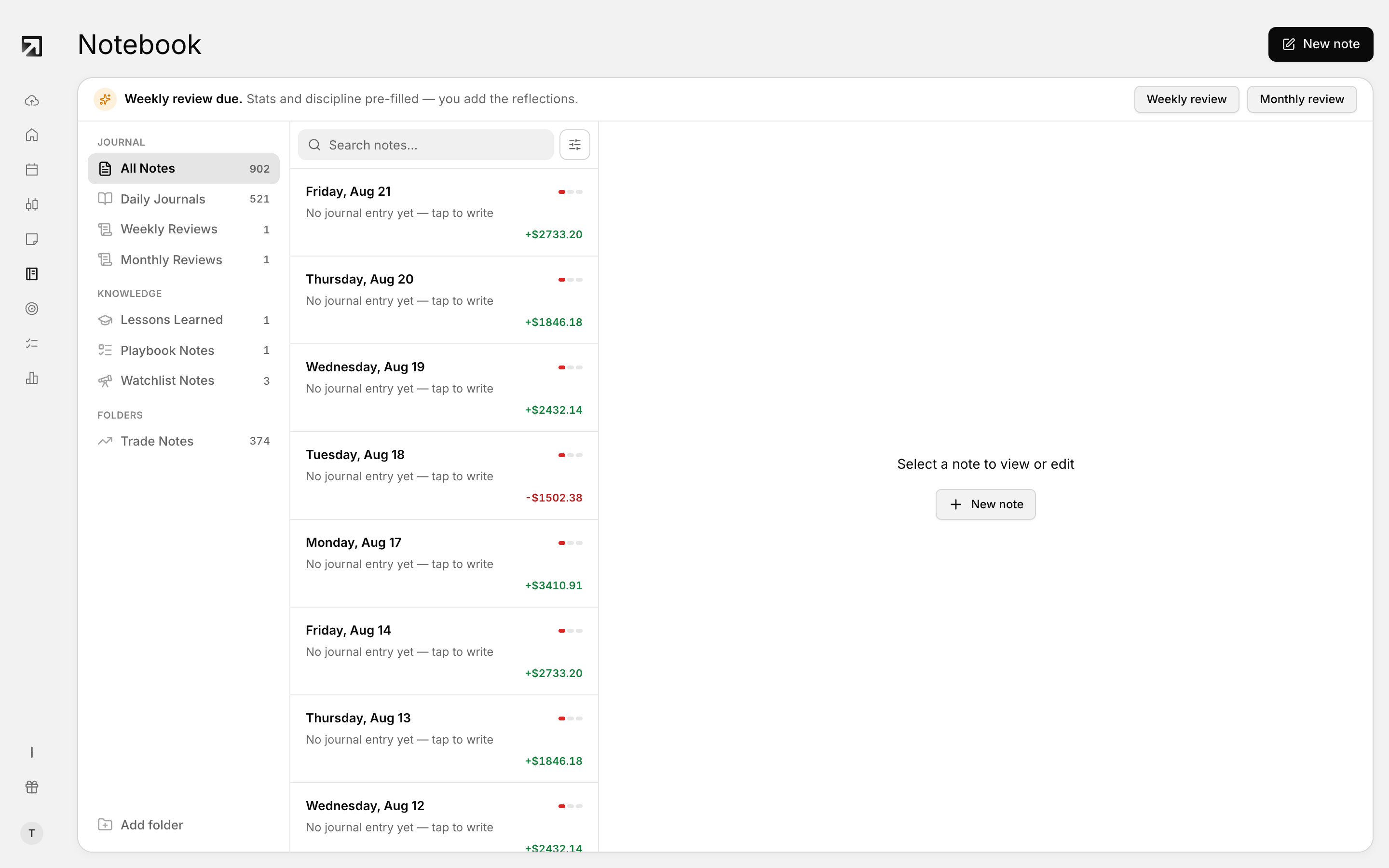 The Notebook. Folders on the left hold your notes, playbooks, lessons and watchlist.
Notebook is separate from the structured flow in Daily Journal.
Notebook areas
- All Notes — browse notes across folders in one list.
- Daily Journals — write a daily entry to review your trading day.
- Trade Notes — notes tied to individual trades, created from each trade's detail page.
- Lessons Learned — takeaways pinned from journals or trade notes with Save to Lessons Learned.
- Playbooks — document your go-to setups, and link a strategy.
- Watchlist — track symbols with price alerts, directional bias and quick notes.
- Templates — ready-made structures for common review workflows.
You can also add your own folders.
Create a note
- Open Notebook and select an area.
- Click New note.
- Enter a title and start writing.
In some areas the button changes:
- Trade Notes — created from each trade's detail page.
- Lessons Learned — use Save to Lessons Learned on another note.
- Playbooks — the button becomes New playbook.
- Watchlist — the button becomes Add symbol.
Start from a template
- Open or create a note.
- Open Templates from the toolbar.
- Pick Daily Review, Trade Plan, Weekly Review, Psychology Check-in or Strategy Development.
- Apply the template.
Applying a template replaces the current editor content.
Search your notes
Use Search notes... to filter by text. You can also narrow with tags and date filters.
Add a folder
- Click Add folder.
- Enter a folder name.
- Click Create Folder.
Folder names must be unique.
Move a note to a folder
- Open the note.
- Open the note menu and choose Move to folder.
- Pick a folder, then confirm.
Available on saved notes that are not trade notes.